



(Source: Unsplash)
Booking flights online can sometimes feel overwhelming, especially with so many websites offering different prices and options. This is where Skyscanner becomes incredibly useful. It is one of the most popular flight comparison platforms in the world, helping millions of travelers find the best deals on flights quickly and easily.
In this detailed guide, you’ll learn how to book a flight using Skyscanner step-by-step
✈️ What is Skyscanner?
Skyscanner is not a booking website itself; instead, it acts as a powerful search engine that compares flight prices from hundreds of airlines and travel agencies. Rather than visiting multiple airline websites individually, you can simply search once on Skyscanner and view all available options in one place.
This makes it an excellent tool for travelers who want to save both time and money. It also ensures transparency, as you can compare prices, durations, routes, and airlines side by side before making a final decision.
Another advantage of Skyscanner is its user-friendly interface, which is designed for both beginners and experienced travelers. Whether you are planning a domestic trip or an international journey, Skyscanner simplifies the entire process.
🔍 Step 1: Visit the Skyscanner Website
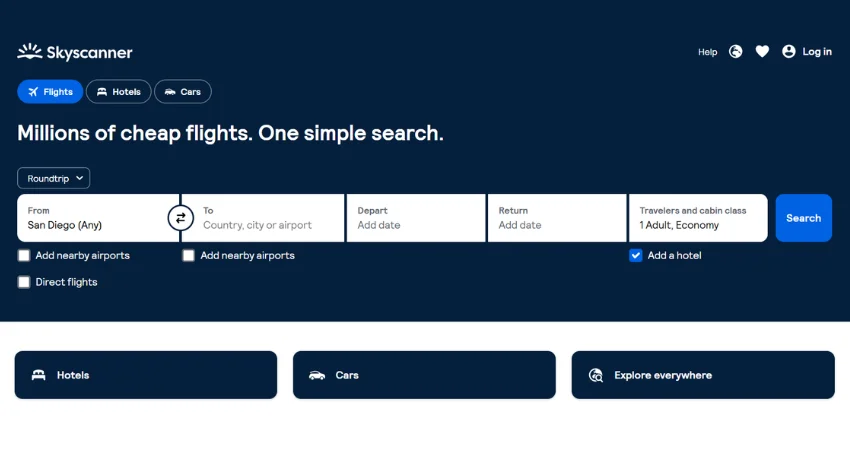
To begin, go to the official Skyscanner website or open the mobile app. Once you land on the homepage, you will see a simple search form where you can enter your travel details.
Start by entering your departure city and destination. Then select your travel dates and specify the number of passengers. You can also choose between economy, premium economy, business, or first class depending on your preference.
One of the most powerful features here is the flexibility option. If your travel dates are not fixed, you can select “Whole Month” or even “Cheapest Month.” This allows Skyscanner to display the lowest available fares across a broader time range, helping you save significantly.To begin, go to the official Skyscanner website or open the mobile app. Once you land on the homepage, you will see a simple search form where you can enter your travel details.
Start by entering your departure city and destination. Then select your travel dates and specify the number of passengers. You can also choose between economy, premium economy, business, or first class depending on your preference.
One of the most powerful features here is the flexibility option. If your travel dates are not fixed, you can select “Whole Month” or even “Cheapest Month.” This allows Skyscanner to display the lowest available fares across a broader time range, helping you save significantly.
📅 Step 2: Select Flexible Travel Dates
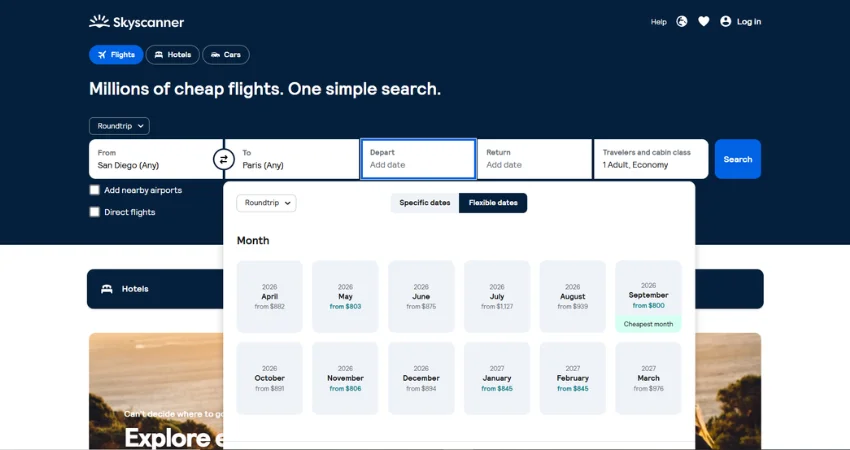
After entering your search details, Skyscanner will show you a calendar view (if you selected flexible dates). This feature is extremely useful for budget travelers.
Instead of choosing a fixed date, you can compare prices across different days and weeks. Typically, the cheapest fares are highlighted, making it easy to identify the best time to fly. In many cases, flights on weekdays—especially Tuesdays and Wednesdays—are cheaper than weekend departures.
By adjusting your travel dates by even one or two days, you can often reduce your ticket cost significantly. This is one of the most effective ways to find cheap flights using Skyscanner.
🛫 Step 3: Compare Flight Options
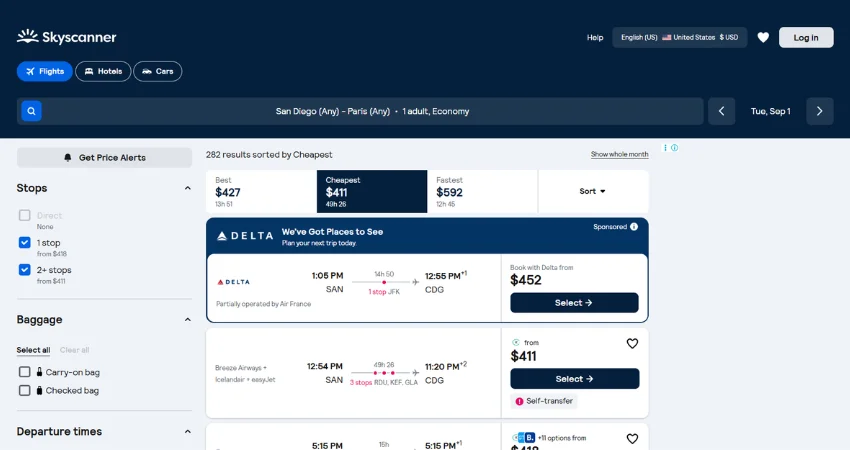
Once you select your preferred dates, Skyscanner will display a list of available flights. These results are usually categorized into three main options: Cheapest, Fastest, and Best.
The “Cheapest” option focuses on the lowest price, while the “Fastest” option highlights flights with the shortest travel time. The “Best” option offers a balance between price and convenience.
Each flight listing provides detailed information, including the airline name, departure and arrival times, total duration, number of stops, and ticket price. This makes it easy to compare different options and choose the one that suits your needs.
⚙️ Step 4: Use Filters to Refine Results
To narrow down your choices, Skyscanner provides a variety of filters. These filters allow you to customize your search results according to your preferences.
For example, you can select the number of stops, such as non-stop flights only, or include one-stop options for cheaper fares. You can also filter by departure time, arrival time, airlines, and price range.
If you have a preferred airline or specific travel requirements, these filters can save you a lot of time by eliminating irrelevant options. This ensures that you only see flights that match your criteria.
💳 Step 5: Book Your Flight
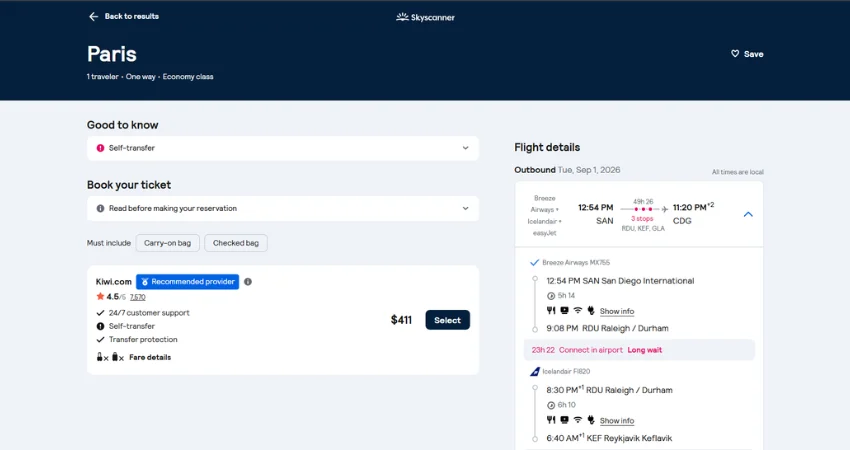
After selecting your desired flight, click on it to proceed. At this stage, Skyscanner will show you a list of booking providers. These may include the airline itself or third-party travel agencies.
When you click on a provider, you will be redirected to their official website. This is where you will complete the booking process. You will need to enter passenger details, choose additional services (such as baggage or seat selection), and make the payment.
It is always recommended to double-check all details before confirming your booking, including travel dates, names, and flight timings.
🔔 Step 6: Set Price Alerts
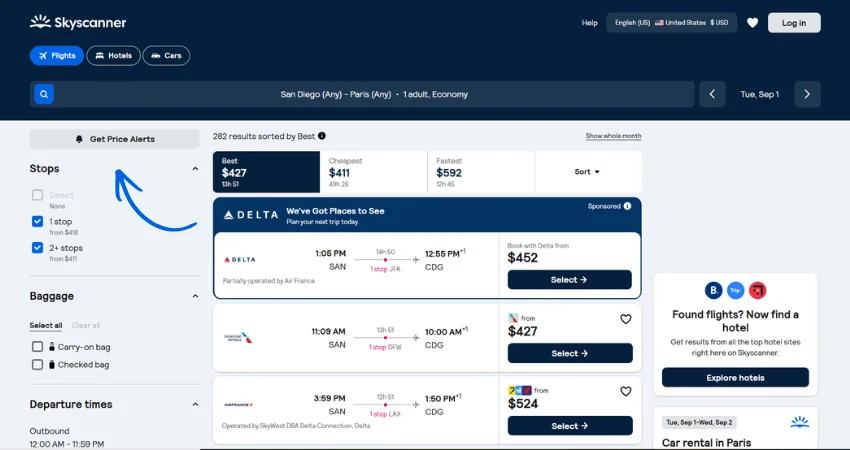
If you are not ready to book immediately, Skyscanner offers a price alert feature. This allows you to track changes in ticket prices for your selected route.
Once you enable alerts, you will receive notifications whenever the price goes up or down. This helps you book your flight at the best possible time and avoid overpaying.
Price alerts are especially useful for international travel, where fares can fluctuate frequently.
💡 Expert Tips to Find Cheap Flights
Finding cheap flights is not just about luck—it involves smart strategies. Booking your tickets at least 3–6 weeks in advance can often result in better prices. Additionally, using incognito mode while searching may prevent price increases based on repeated searches.
Being flexible with your travel dates and airports can also make a big difference. For example, flying from a nearby airport or adjusting your departure by a day or two can significantly reduce costs. Avoiding peak travel times such as weekends, holidays, and major events can also help you find better deals.
Lastly, always compare multiple options before booking and take advantage of Skyscanner’s features to maximize savings.
Skyscanner FAQs
Is Skyscanner free to use for booking flights?
Yes, Skyscanner is completely free to use. It does not charge any booking fees and simply compares prices from airlines and travel agencies.
Can I book flights directly on Skyscanner?
No, Skyscanner does not handle bookings directly. It redirects you to the airline or travel agency website where you complete your booking.
How can I find the cheapest flights on Skyscanner?
You can use the “Whole Month” or “Cheapest Month” feature, set price alerts, and be flexible with your travel dates to find the lowest fares.
Is it safe to book flights through Skyscanner?
Yes, Skyscanner is safe because it only connects you to trusted airlines and verified travel partners. Always double-check the provider before making payment.
When is the best time to book flights for cheaper prices?
The best time to book flights is usually 3–6 weeks before departure. Booking on weekdays and avoiding peak travel seasons can also help you save money.
Share This Blog